
A day for the owner, finance, and support: seen from the demo screens
Before buying a back office, owners often want to know how each person on the team will use it through the day, not just see a list of menus. All of it comes in the same bundle as the brand's player site, so anyone planning a turnkey betting website should picture a real working day before deciding. This article follows one day for three roles, brand owner, finance team, and support, through the screens in the EVOTEX demo.
Contents
The day described here is a made-up scenario that we put together from the screens in the demo. It isn't a real customer's story and carries no one's endorsement. We didn't time anything with a clock, so there are no numbers in minutes. The only numbers are click counts that the back office team recorded in their acceptance document. All data in the images is sample data. The labels used: "can be tried in the demo" means you can press it in the demo, and "sample" means there is a page to look at but the numbers are simulated.
Not for: people looking for customer success stories, and individual players, because this article is a simulated picture of use for operators.
How to read this one day
The day splits into three parts, and each part has one role as the lead. But in fact all three roles use the same back office and see the same set of numbers. They differ only in which page each person opens often.
The terms of this article:
- The names of people, the brand names, and the numbers in the images are all made-up demo data
- There are no times measured with a clock. The numbers that are click counts come from the back office team's acceptance document, counted by an automated test suite
- What is still a sample or not yet connected to a live system is said at the point where it comes up
Brand owner: morning, open the Today page
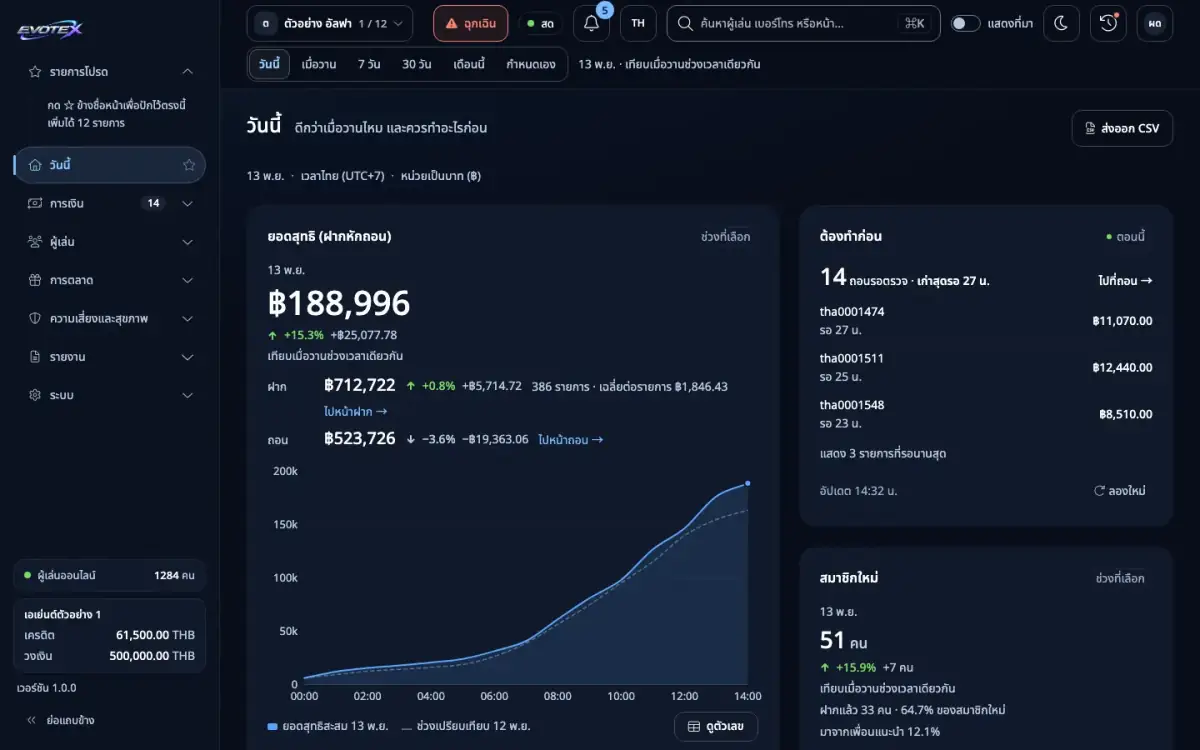
The owner opens the back office and lands on the Today page. One page answers the three questions the owner asks every morning: are we up or down compared with yesterday, is there pending work waiting on a decision, and how many new players came in (can be tried in the demo).
What the owner sees and can do from this page:
- The day's net, which is deposits minus withdrawals, with a comparison against yesterday at the same time
- Boxes for deposits, withdrawals, new members, and active players. Tap each box to open the items inside
- A button, Go approve withdrawals, that takes you to the finance queue
- The five highest pending withdrawals, an hourly chart of deposits and withdrawals, and the month's deposit target
- 7 ready-made date range options, and an export to CSV button
At the top edge of every page there is an orange warning strip that says how many withdrawals are waiting and how long the longest has waited, with a link to the queue. So the owner sees pending work without opening the queue. The numbers in Active players and This month's deposit target are still labeled not connected to a live system in the demo.
If you have several brands, the owner can switch brands from the menu without signing in again. See the details in managing several brands in one back office. The numbers to open every morning, and where each comes from, are in reports a brand owner should open every day (page in Thai)
Finance team: late morning to afternoon, with the withdrawal queue
The finance team spends most of its time on the Withdrawals page. This page splits items waiting for a decision into three groups, with a total for each group: ready, awaiting review, and claimed (can be tried in the demo).
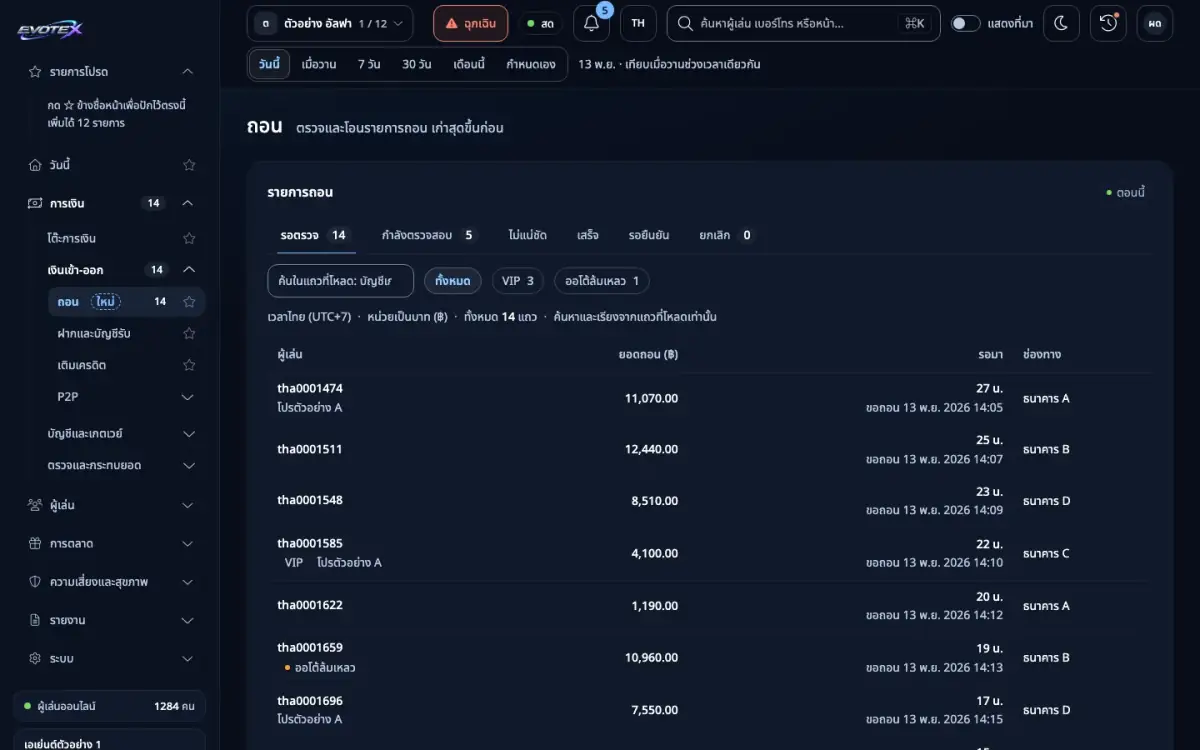
The finance team's work has three beats:
- Press select all ready. This button selects only the items that are ready for a decision. If you want to see only the big amounts, there is an Amount 20,000 or more filter and a Has a warning signal filter
- Press approve. The confirmation box summarizes the items and the items with warning signals, then asks for a 6-digit OTP. In the demo you can enter any 6 digits except 000000, which is there so you can see what a wrong code looks like
- See the result in the same row, then move to the next item
The click counts the back office team recorded in the acceptance document:
- Approving one item takes 2 clicks and one OTP field
- Approving a batch of 8 rows takes 3 clicks
These numbers were counted by an automated test suite. They weren't timed on a real machine. The system sends the orders one by one and shows the result per row. It isn't one command that sends the whole batch. If your team wants to see all the steps, read how the withdrawal queue works
What helps work move fast without remembering things:
- You can switch between a table and cards, and hide columns you don't use
- The Exceptions tab holds items that don't go through normally, with 12 ways to handle them, such as paying a smaller amount, resending through another account, or letting the system retry the automatic payout
- If the bank's answer is unclear, the item goes to the page for money with an unknown result. In the meantime the system doesn't accept a repeat money order on that item, and the number badge on the menu says how many are waiting
- On the deposit side, there are filters for automatic and manual top-up, and a manual top-up has 2 steps that warn you when the player and amount match a recent item close in time
- The number badges beside the Withdrawals, Deposits, and money with an unknown result menus count the real waiting items on each page
The long-wait withdrawal strip changes level to yellow, red, and urgent according to how long an item has waited. The default thresholds in the demo are 3, 5, and 10 minutes. You can set them yourself, but the whole alert section is only simulated in the demo, the default thresholds are made-up values, and sending by real role is set at setup.
Support: afternoon to evening, with chat and the player list
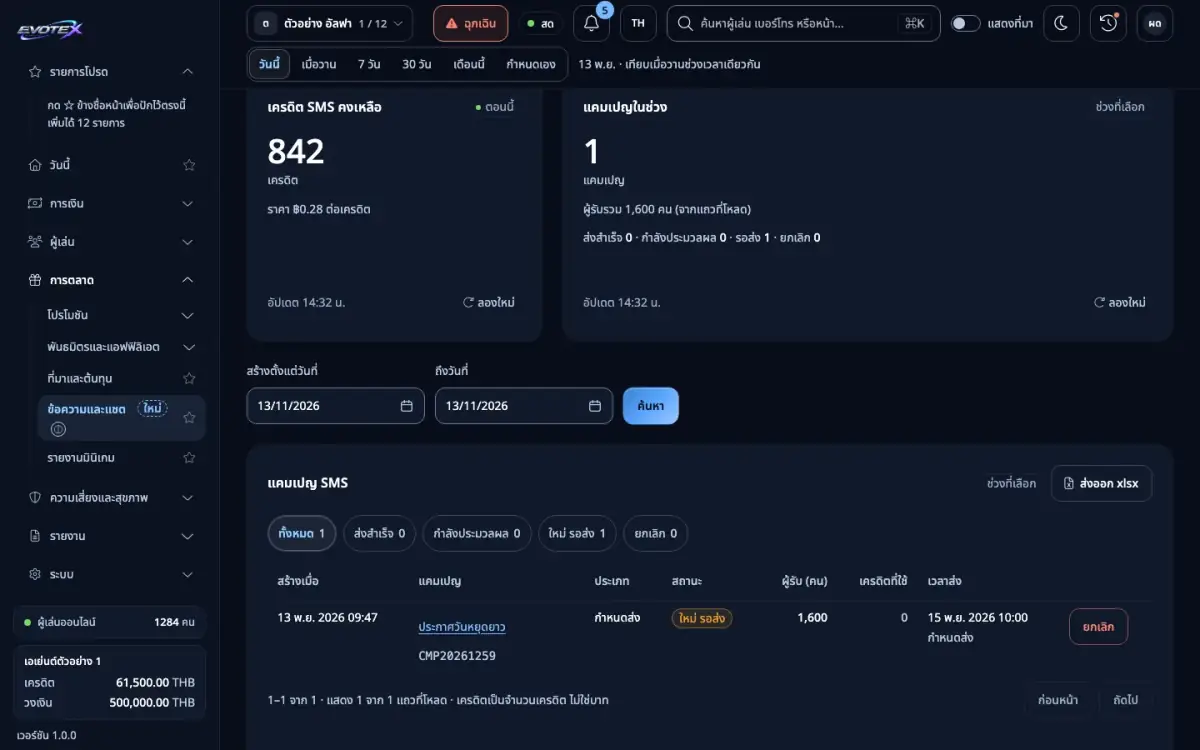
The Chat page is the message box for the LINE channel. Right now, chat in the back office supports LINE only, with no Telegram or Facebook chat. This page has six tabs: chat, overview, auto-reply, chat settings, manage chats, and LINE OA (can be tried in the demo).
The rhythm of support work:
- The Reply to the person who has waited longest button takes you to the room that has waited longest, in a single press
- Room filters: all, waiting for a reply, mine, and finished, each with a count
- The Claim case button, so others know that someone is handling this room, plus changing the room's status and adding tags
- Quick messages and stickers. Once you press send, the system stops a double send
- Auto-reply rules: set 1 to 50 words to match, and reply with 1 to 5 messages. You order the rules so the first match wins, and there is a Test a message box to see which rule would answer
To say plainly: the settings tab has a place to set up an AI assistant, but the box where you test asking the AI is simulated in the demo. So we don't write that chat is answered by AI. If this matters to you, ask our team directly what the AI can really do.
The other half of support work is the Players page:
- Search by name, username, or phone number. Press / or ⌘K to jump to the search box from any page
- Choose to show or hide columns, and save the filters you use often for reuse
- Check the blacklist by one player ID, account number, or phone number at a time. The system answers only hit or no hit, and doesn't give a name or a reason
- A player profile has 7 tabs, from account information and activity, through bank accounts, to settings
- Phone and account numbers are always partly masked. Viewing the full number needs the view full number permission
End of day: a table comparing the three roles
In the evening, the owner opens the Executive summary page or exports CSV to discuss with the team. The team admin opens the history and security page to see who did what during the day. Finance checks that no items are left pending. This table summarizes the whole day.
| Role | Pages opened often | What is repeated every day | What makes it fast and easy |
|---|---|---|---|
| Brand owner | Today, Executive summary, Reports | Read the net, see pending work, choose a date range | Every number box taps through to the items, export to CSV |
| Finance team | Withdrawals, Deposits, money with an unknown result, Payments | Review and approve withdrawals, look at deposits | Select everything ready, number badges on menus, filters for amount and warning signals |
| Support | Chat, Players, Messages | Answer chats, search players, send quick messages | Reply to the person who has waited longest, auto-reply rules, saved filters |
Tools all three roles share
These are on every page, so moving from one job to another goes smoothly.
- The search box at the top changes meaning with the page. For example, it searches players or withdrawal codes on the Today page, and game provider names on the Player site page
- The alert strip and the bell show the number unread and the connection status: live, slow, or offline. The whole set of alerts is simulated in the demo
- The same date range selector on every page, comparing with the previous period of the same length, and passable to teammates through a link
- Every page has four states: empty, loading, error, and offline. Numbers are hidden instead of showing old values
- Every page works on mobile at 390 px wide. See using the back office on mobile
Good to know before you compare with other systems
This article is a simulated picture from the demo, not a customer's report. These parts have to be read together.
- The whole demo uses sample data and hasn't called any brand's live system
- The side menu in the demo is the same for every account at the same level. The finance account sees the full menu like an owner. Hiding menus by real role is set at setup. What you can see in the demo is the role editor and the permission table on the Team and permissions page
- The long-wait withdrawal alerts are a simulated sample, not a live channel
- The numbers for active players and the deposit target aren't connected to a live system yet
- The check at 390 px was done in a browser. It hasn't been tested on real iOS and Android devices
What to ask our team
This page can't confirm these things, so ask when you agree the scope.
- In real use, does each role see only its own menus, and how is that set?
- For real-time long-wait withdrawal alerts, which channel sends them to whom, and when are they set up?
- Can the click counts the back office team recorded be re-checked on our brand's system?
- When several finance team members work at once, who claims which item, and how can you see it?
- Does chat support channels other than LINE, and what can the AI assistant in chat really do?
- How does EVOTEX support help answer questions about using the back office in the first week?
- Is there training by role before launch day?
Keep reading
- What a back office must have: a 12-point checklist split by role
- How the withdrawal queue works: follow the finance team's steps one at a time
- Using the back office on mobile: the same work on a 390 px screen
- Reports a brand owner should open every day (page in Thai): the numbers an owner should open every morning
- The betting site back office (page in Thai): an overview of the back office menus
- Try the back office with sample data (page in Thai): try each role's work right now, with no sign-up
Our team's target is to open a new brand within 14 to 21 working days after the scope is agreed. See what the package includes on the packages and pricing page (page in Thai)
Related features
- A one-page withdrawal queue with totals by status sample in the demo
- Reply on LINE chat, with one button to the person who has waited longest sample in the demo
- The Today page: the net and all pending work sample in the demo
Related reading
What a back office must have
A good back office gives the owner the whole picture on one page and lets the finance team close money work fast.
How the withdrawal queue works
The finance team's order of work
The back office on mobile at 390 px
Every page of the back office is designed to work at 390 px. Tables become cards, and details open from the bottom of the screen.

Request a demo
Want our team to look at the real thing with you? Request a demo.