
Promotions and rewards: your marketing team sets and switches them
The marketing team wants to launch campaigns fast without waiting for an engineer every time. In the first stretch of opening a turnkey betting website, teams usually set up a few promotions first, then adjust according to what works. This toolset is designed to be adjusted that fast. It's written for operators and marketing teams, not for players.
Not for: people looking for ready-made ad copy to tell players. This tool helps you set up and manage promotions. It doesn't write the ad copy for you.
6
Features in this group
6
Items you can try in the demo
All
The demo uses sample data throughout
Every page in the demo uses sample data and has nothing to do with any brand's money or accounts
Promotions and rewards: feature by feature
- sample in the demo
Turn a promotion on or off with the switch in its row
Turn off a promotion whose time is over, or turn on one you prepared, in one click
In the promotions list, every row has an on or off switch. Click it and the change is immediate, with a message to undo if you clicked by mistake. The top summarizes how many promotions are on, how many are off, and how many rewards are waiting for approval. A team that adjusts promotions often doesn't have to open the form every time, and sees the result in the list the moment they click the switch.
- sample in the demo
Set up a promotion in a six-step sheet
Set up a new promotion on one page, from the type to the check before saving
The promotion sheet has 6 steps: type and name, who gets it and when, bonus and turnover requirement, player site page, advanced, and check before saving. The team goes through them one at a time without having to remember which field is where. To change an existing promotion slightly, click duplicate and edit just the parts that differ. The same sheet is used both for creating a new promotion and for editing an existing one.
(sample data from the EVOTEX demo) - sample in the demo
A warning when two promotions overlap
Know before two promotions clash, and fix it in time
If two promotions have conditions that overlap, the promotions list shows a warning strip before a player runs into a problem, so the team can fix it in time. There's a filter, has banned players, for promotions that exclude some players by list. You can open it yourself, without asking support about each promotion one by one. The marketing team can keep promotions from clashing from the moment they're set up.
The sample promotions in the demo were made for trying it out, not a real brand's promotions
(sample data from the EVOTEX demo) - sample in the demo
Approve rewards one at a time or in a batch
Clear the rewards queue fast, with no clicking item by item
When a player redeems a reward, the item lands on the Rewards awaiting approval tab. The marketing or support team approves one at a time or selects several together. The number waiting also shows in the summary at the top of the Promotions page, so everyone knows right away how much work is pending. The result of an approval shows in the row immediately.
(sample data from the EVOTEX demo) - sample in the demo
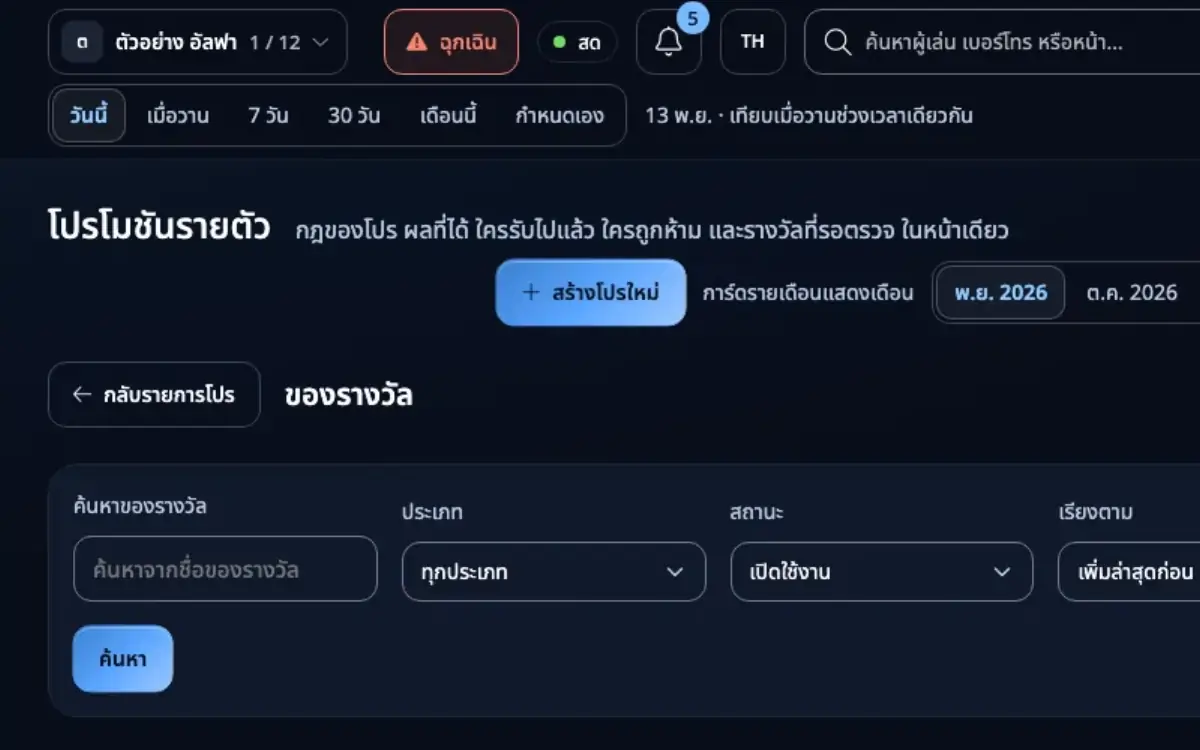
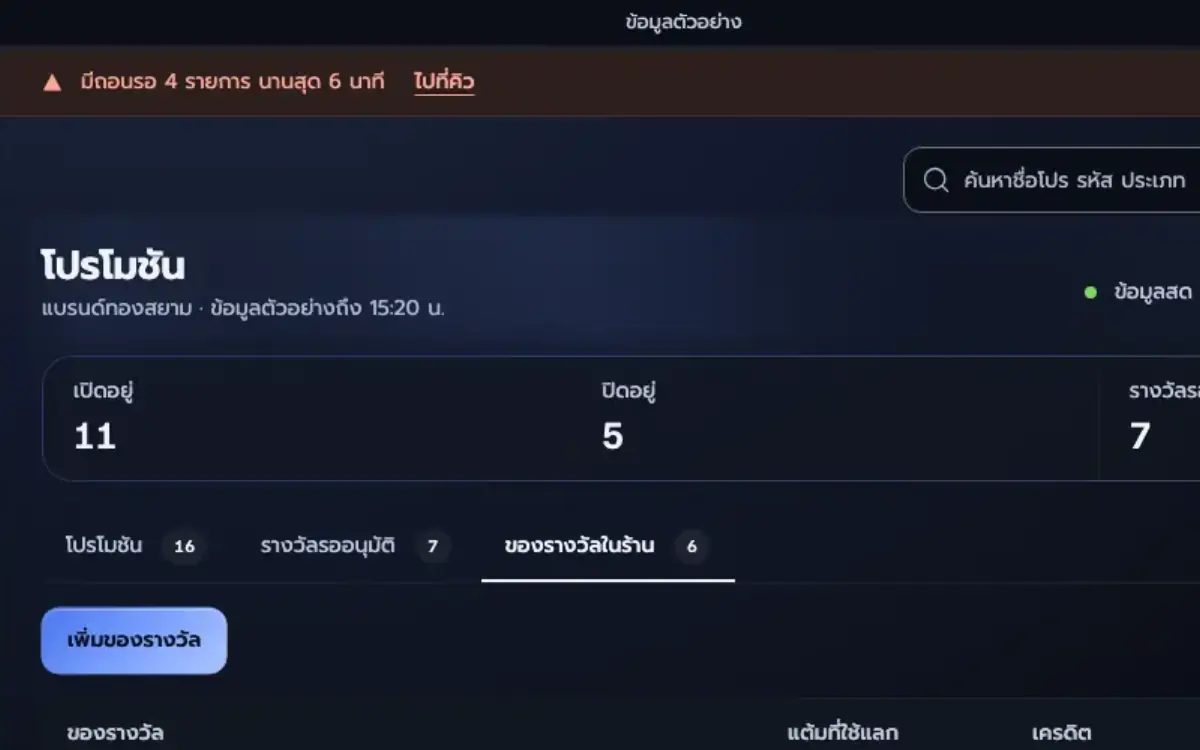
A rewards shop with eight types
Set the rewards players redeem with points, and choose the types yourself
The rewards tab in the shop lets the team set the items players redeem with points. You can choose from 8 types: lifestyle items, gadgets, free credit, gold, in-game credit, free spins, mystery boxes, and wheels. Enter a name, a picture, and the points needed, and choose when it shows. The marketing team can change the rewards by period on its own.
(sample data from the EVOTEX demo) - sample in the demo
See the results of each promotion
See which promotion people use most, to decide the next round
The Player behavior page has a Promotions tab that shows each promotion's results so the marketing team can compare them: which promotion has participants, and what it costs. Use it to decide which promotion to renew, adjust, or end next round. The numbers in the demo are purely sample data. In real use, the team decides from the numbers, not from guesses.
Sample numbers. The page carries a not connected to the system yet label
Screens from the newer back office
More screens of this group from the newer back office, blue theme. It looks different from the demo above, which has a teal theme. You can only view the pictures; you cannot try it in the demo on this site.
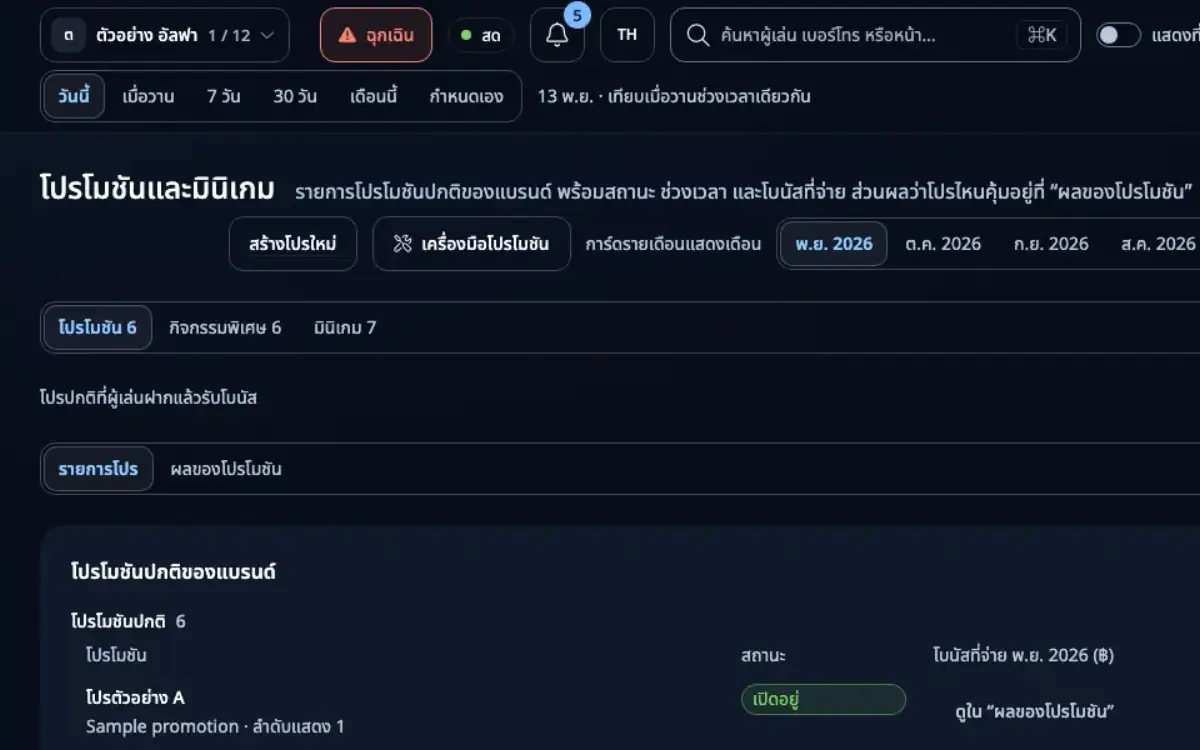
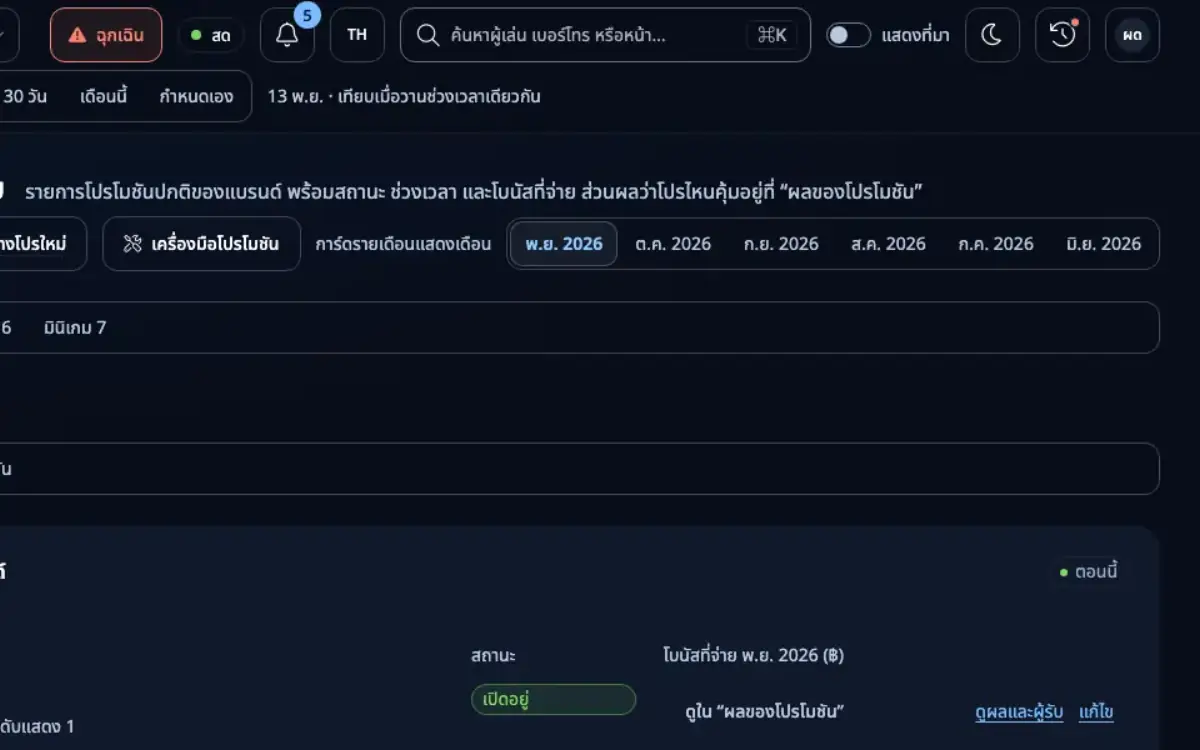
Promotions: the regular promotions area
The list of regular promotions with status, date range, and an on and off switch
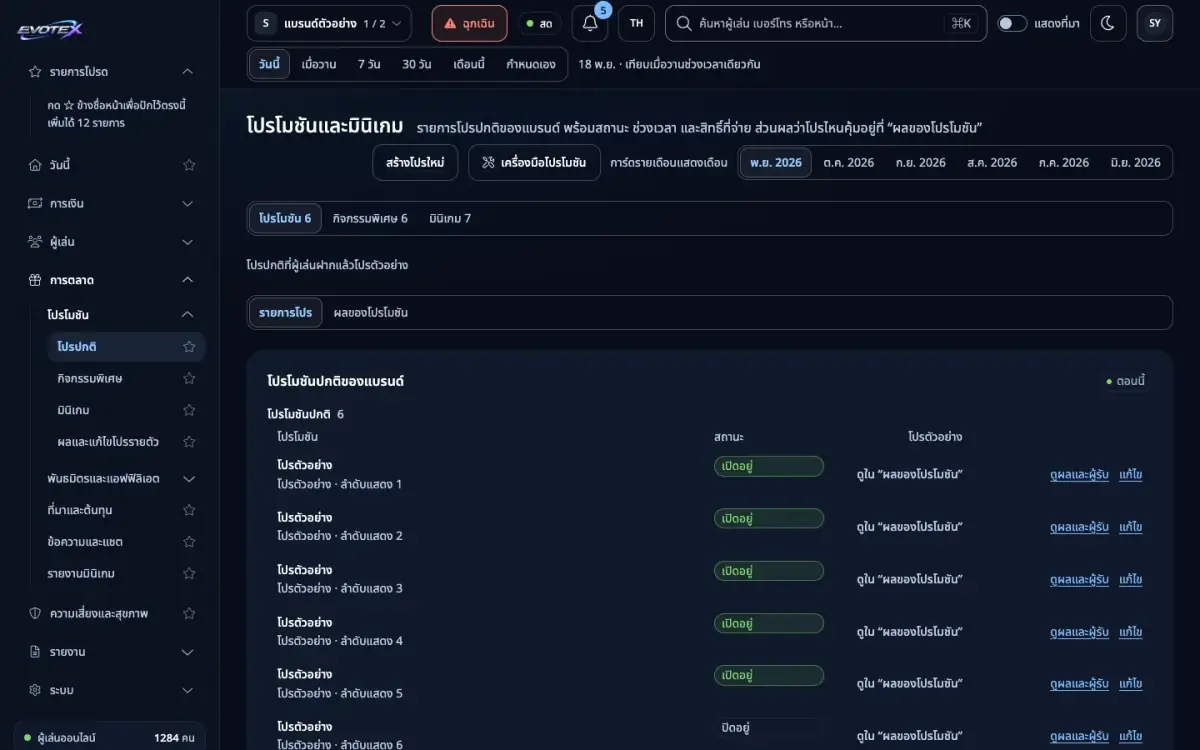
screenshot from the live system Screen from the newer back office (blue theme), with sample data from a prototype. The demo on this site has a different look (teal theme) and does not have this page yet, so only the picture is shown. Promotions: the special activities area
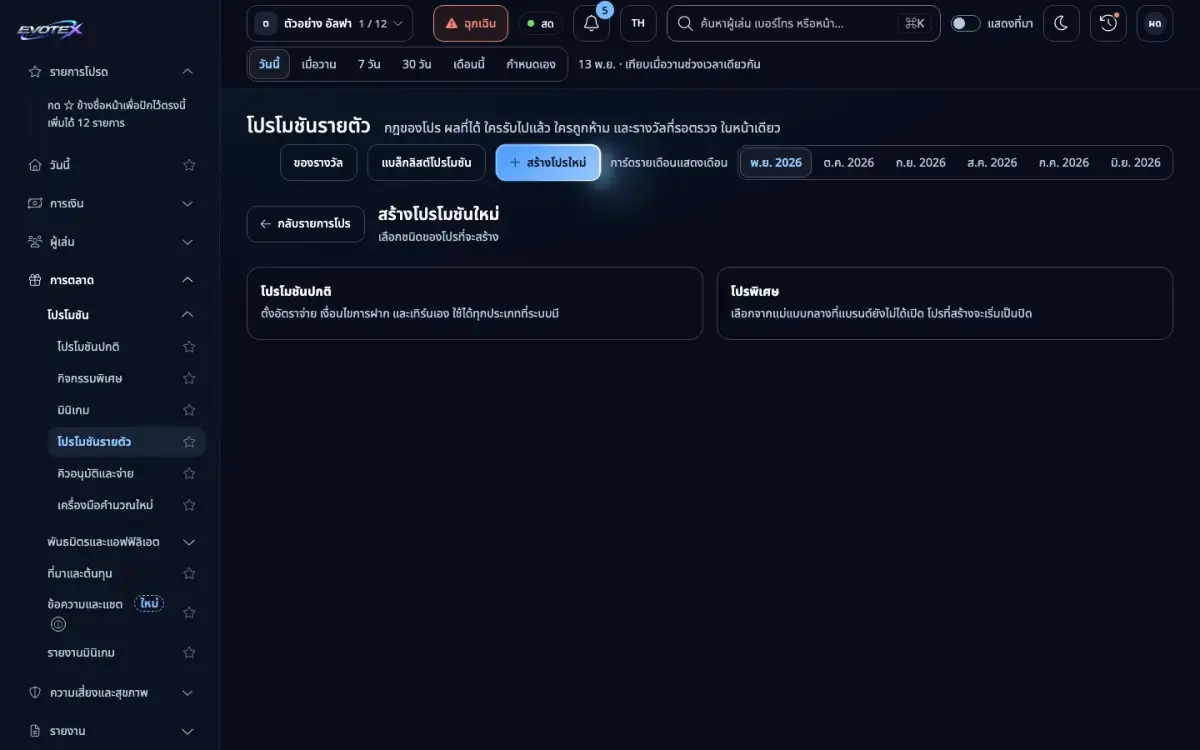
The special activities area of the Promotions page
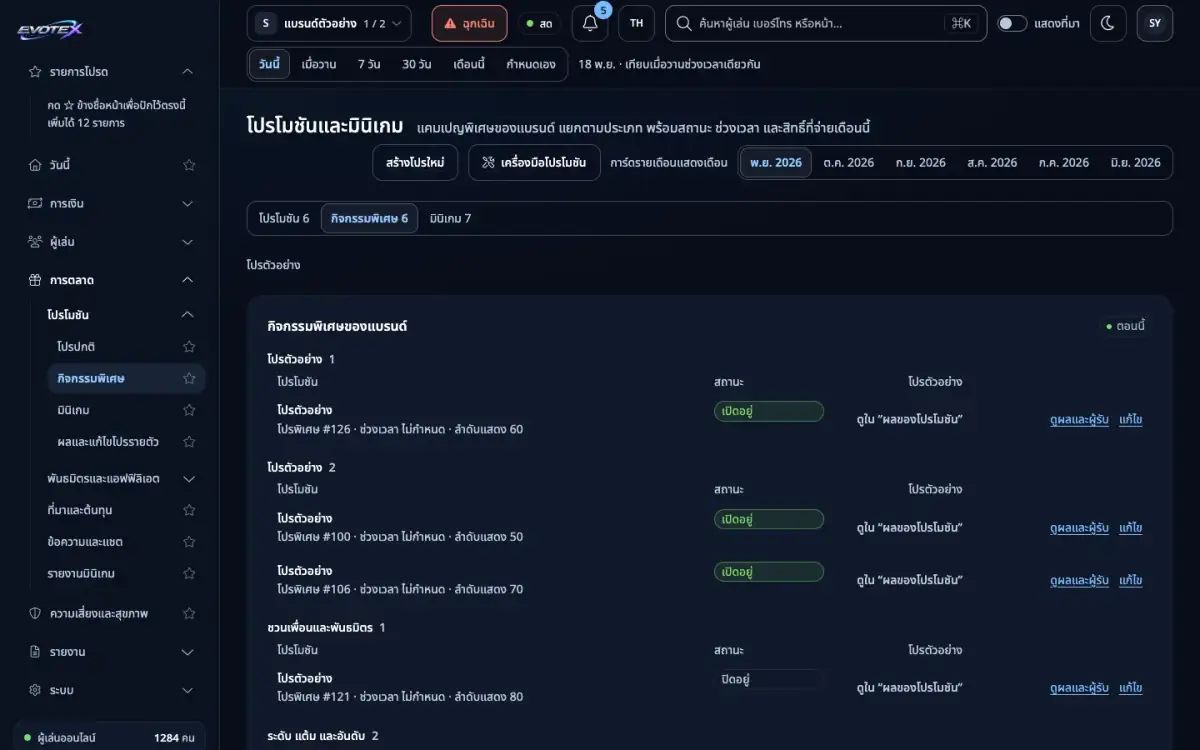
screenshot from the live system Screen from the newer back office (blue theme), with sample data from a prototype. The demo on this site has a different look (teal theme) and does not have this page yet, so only the picture is shown.
Not in the demo yet
Items that are not in the demo yet
- Missions and friend referral codes are in the system contract already, but there's no screen for them in the demo yet.
- Promotions in the demo aren't connected to the player site. Our team sets up the connection to a brand's player site at installation.
Frequently asked questions
Does a promotion show up on the player site by itself once you set it up?
The demo is a back office with sample data, and it isn't connected to a player site. The promotion sheet has a Player site step where you choose whether to show the promotion. As for connecting to a brand's player site, ask our team when you discuss the scope how each type of promotion appears on the player site.
Can I duplicate an existing promotion and change only some parts?
Yes. The promotions list has a duplicate button. Click it and you get a new promotion with every value copied. The team edits only the fields that differ and saves it as a new promotion, without filling in all 6 steps again.
Are there missions or friend referral codes?
The back office's system contract has this part, but the demo has no dedicated screen for it yet, so we don't count it as something you can try. If you're interested, ask our team when you discuss the scope when it can be opened. For the commission for people who bring players in, see agents and commission.
Related reading
Promotions in the back office
Your marketing team can set up promotions with a 6-step sheet, start from a central template or duplicate an old one, and switch it on and off at the end of the row.

Want to see the real thing before you talk to us?
Our team's target is to open a new brand within 14 to 21 working days after the scope is agreed. That's a target, not a guarantee. See packages and pricing (page in Thai) or try the back office demo before you talk to our team.
See the package and price (page in Thai)